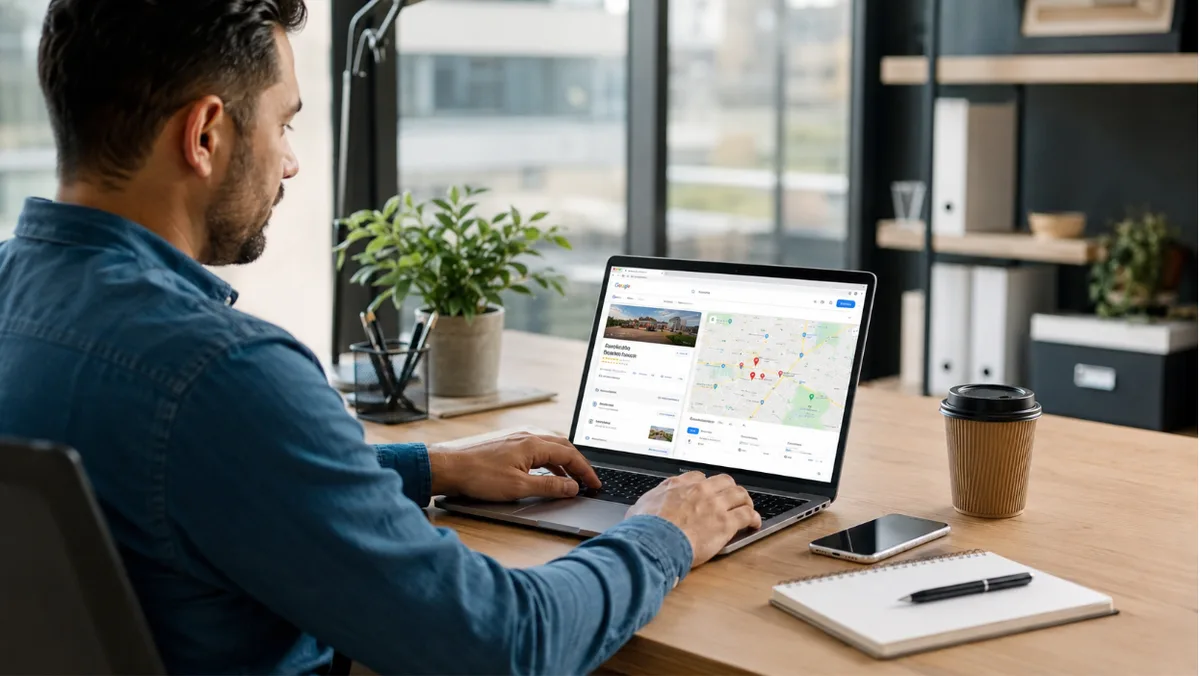
To set up a Google Business Profile, search your business name on Google Search or Maps to check it doesn't already exist, then choose "Add your business to Google." Enter your name, category, location or service area, and contact details, and finish the verification step Google assigns you. Once verified, your business shows up on Search and Maps.
That's the whole process in a nutshell. The rest of this guide walks through each part, including the spots where people get stuck — verification, service areas, and setting up a profile for someone else.
A Google Business Profile (formerly Google My Business) is a free listing that controls how your business appears on Google Search and Maps. You set it up by adding or claiming the business through Search or Maps, entering your details, and completing Google's verification. Until you verify, the profile stays hidden.
What a Google Business Profile Is (and Why Setup Matters)
A Google Business Profile, or GBP, is your business's listing on Google Search and Google Maps. It's the box that shows your name, hours, phone number, reviews, photos, and a map pin when someone looks you up. Google gives it to you for free.
You may know it by its old name, Google My Business. Google renamed it to Google Business Profile a few years back and moved most of the management into Search and Maps directly. Some people still call it a "page," but it isn't a webpage you build — it's a profile Google shows inside its own results.
Setup matters because this profile is how local customers find and judge you. Google decides who appears in the local results — the map pack of three businesses near the top — based on relevance, distance, and prominence. Your profile feeds all three. An incomplete or unverified profile gives Google less to work with, so you show up less. A complete one also feeds AI tools like ChatGPT and Google's AI summaries, which pull from public profile data when they recommend businesses.
Before You Start: What to Have Ready
Setup goes faster when your details are in front of you. Gather these first:
- Your exact business name, written the way it appears on your sign or paperwork
- Your address, or the areas you serve if you travel to customers
- A business phone number and website
- Your hours
- The main category that describes what you do (for example, "Electrician" or "Hair salon")
- A few real photos of your work, team, or location
Keep your name, address, and phone number identical to how they appear on your website and other listings. Google checks for consistency, and mismatched details across the web can slow you down. Clean business listings and citations make the whole thing smoother later.
How to Set Up a Google Business Profile, Step by Step
Here's the full process. It takes about 15–30 minutes to enter everything, though verification can add a few days.
- Search for your business first. Open Google Search or the Google Maps app and type your business name. Google sometimes creates a basic listing on its own from public information. If yours already exists, you'll claim it instead of making a new one. This avoids duplicate listings, which cause ranking problems down the line.
- Add or claim the business. If nothing comes up, choose "Add your business to Google" (you can also start at business.google.com/add). If a listing exists, open it and click "Claim this business" or "Own this business?" to begin.
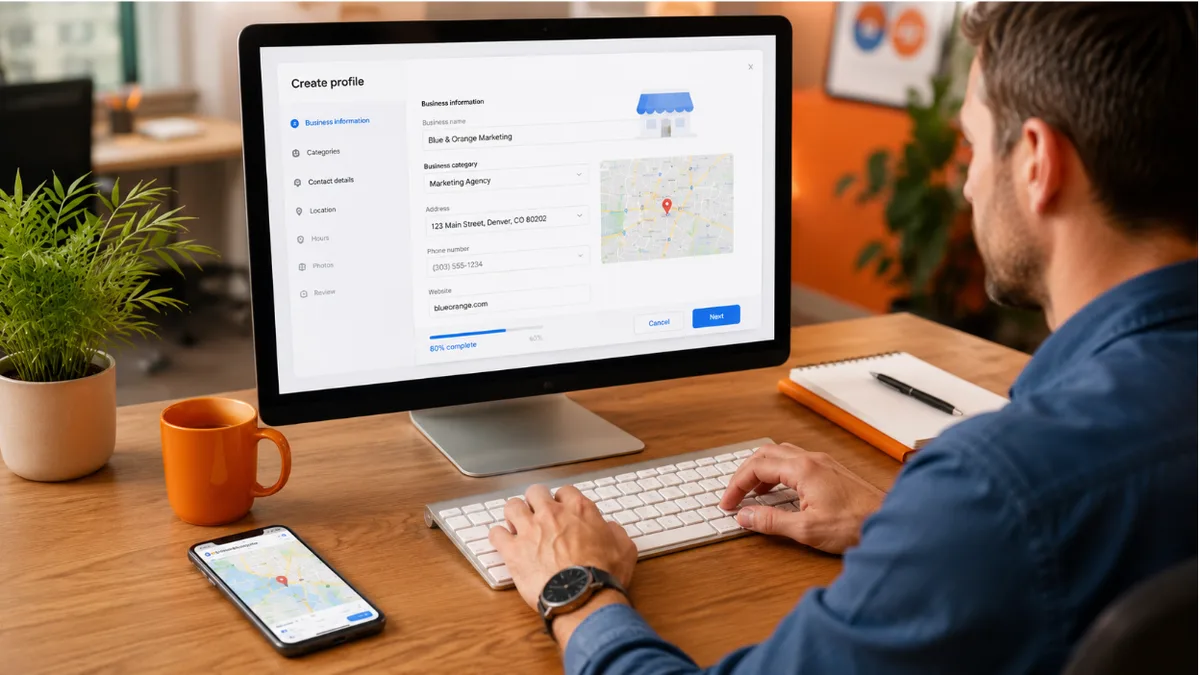
- Enter your business name and category. Type your real business name, then pick your primary category. This is one of the most important choices in the whole setup, because the category strongly shapes which searches you appear for. Pick the most accurate one. You can add more categories later.
- Choose whether you have a storefront or serve customers. Google asks if customers visit you at an address or if you go to them. A shop or office picks the first. A plumber, cleaner, or mobile business picks the second and sets up a service area (covered in the next section).
- Add your address or service area. Enter your full address if customers come to you. If you travel to them, you can hide the address and list the areas you cover instead.
- Add your contact details. Enter your phone number and website. Where the option is available, you can also let customers reach you by text message or WhatsApp, which routes straight to you.
- Finish and start verification. Accept the terms, and Google moves you into verification. This is the step that makes your profile go live.
How to Verify Your Google Business Profile
Verification is how Google confirms you actually run the business. Your profile stays invisible on Search and Maps until it's done, so don't skip it.
Here's the part that trips people up: you don't get to pick your verification method. Google chooses it for you based on your business type, category, and location. You'll be offered one or more of these:
- Video verification. The most common method now. You record one continuous video on your phone, inside the verification flow, showing your location, equipment or signage, and proof you manage the place. No edits, one take.
- Phone or text. Google sends a code by call or SMS to your business number. Fast when offered.
- Email. A code arrives at your business email. Also quick.
- Postcard. Google mails a code to your address, which you enter when it arrives. Slower.
Review usually takes up to five business days, and Google emails you once you're approved. To improve your odds of a faster method, keep your details consistent across the web and have a verified website. If video verification fails, it's almost always a missing detail — show clear signage, your work area, and management access, and record in one steady take.
How to Set Up a Service Area on Google Business Profile
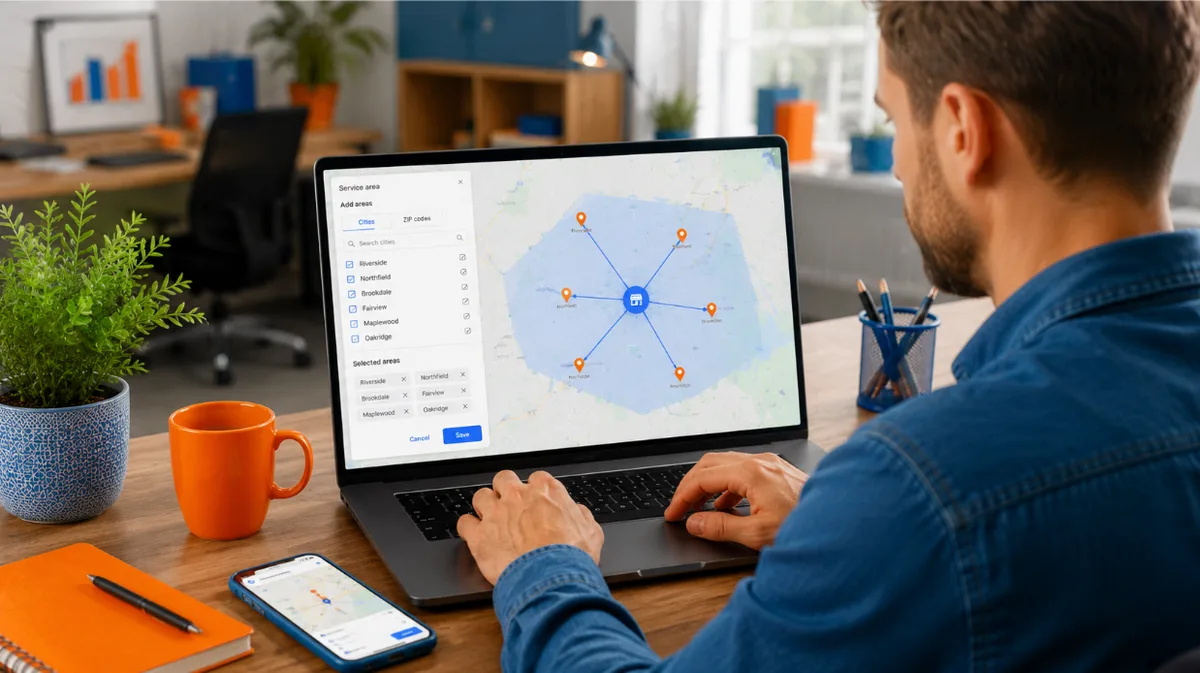
Plenty of businesses serve customers without a storefront. A service-area business goes to the customer, so it hides its address and lists the places it covers instead.
To set this up, choose "I deliver goods and services to my customers" during setup (or set it later under Edit profile, then Location). Then add your service areas by city or ZIP code. You can add up to 20, and Google recommends keeping them within about a two-hour drive of your base.
Resist the urge to list every town within a hundred miles. A tight, realistic service area tells Google where you genuinely operate, which helps you rank in those places. Spreading it too wide usually waters down your relevance everywhere. If you also have an office customers can visit, you can show the address and a service area together.
This setup pairs directly with how you'll rank later — the same logic runs through any local SEO strategy and the broader local ranking factors Google weighs.
How to Set Up a Google Business Profile for a Client
Setting one up for someone else — as an agency, a marketer, or an employee — works a little differently, and getting it right protects everyone involved.
The golden rule: the business owner should always hold the primary ownership of the profile. You manage it; they own it. That way they never lose control if you part ways.
You have two paths. If no profile exists, create it under the owner's Google account where possible, or create it and then add the owner as the primary owner afterward. If a profile already exists and someone else manages it, don't make a duplicate. Open the listing, click "Request access," and fill in your relationship to the business and the access level you need. The current manager has a window to respond before access can transfer.
Google uses access roles to keep this clean. Owners control everything, including adding and removing users. Managers can edit most of the profile but can't hand over ownership or delete it. For client work, ask to be added as a manager, or as an owner with the client kept as primary owner. Set this up correctly once and you avoid the most common headache in local marketing: a verified profile nobody can get into because a former staffer or old agency still holds the keys.
Finish the Setup: Complete Every Section
A verified profile is the starting line, not the finish. Profiles that win local searches are the complete, active ones. Once you're verified, fill out the rest:
- Add secondary categories for the other services you offer (you can add up to nine).
- Write your services and a description in plain language customers actually use. Google can suggest an AI-written description, but rewrite it with real specifics, since the auto-draft tends to be vague.
- Set your attributes, like "wheelchair accessible," "free Wi-Fi," or "woman-owned," where they apply.
- Upload real photos. Businesses with photos get more clicks and more direction requests. Skip stock images.
- Turn on reviews and respond to them. A steady flow of reviews is one of the strongest local signals, and replying shows Google an active business. A simple review system keeps them coming in without you chasing each one. Our guide on getting more Google reviews goes deeper.
- Post updates weekly to promote offers and keep the profile fresh.
If you want the full optimization playbook after setup, this walkthrough of Google Business Profile optimization covers what moves rankings once you're live.
Common Setup Mistakes to Avoid
A few errors show up again and again, and each one quietly costs you visibility:
- Stuffing keywords into your business name. Use your real name only. Fake names like "Best Plumber Chicago" violate Google's rules and risk suspension.
- Creating a duplicate listing. Always search first and claim what exists.
- Using a P.O. Box as a physical address for a location-based business.
- Picking a vague or wrong primary category. It's the heaviest relevance signal you have.
- Leaving sections blank. Every empty field is a ranking signal you skipped.
Frequently Asked Questions
Is a Google Business Profile free to set up?
Yes. Creating, verifying, and managing your Business Profile costs nothing. Google offers it free so customers can find accurate business information on Search and Maps.
Can I set up a Google Business Profile without a physical address?
Yes. If you travel to customers, you can hide your address and list service areas instead. This is the standard setup for mobile and home-based businesses.
Do I have to verify my profile before it shows up?
No. An unverified profile stays hidden on Search and Maps. Verification is required before your business appears or before you can edit most details.
How long does Google Business Profile verification take?
It usually takes up to five business days after you submit, though phone, text, and email methods can finish in minutes. Google emails you once your profile is approved.
Can someone else set up and manage my profile for me?
Yes. An agency, marketer, or employee can manage your profile, but you should remain the primary owner. They request manager access or are added as a user, while you keep full control.
Can I set up a Google Business Profile on Google Plus?
No. Google Plus was a separate social network that Google shut down years ago. Your business presence now lives in your Google Business Profile, shown on Search and Maps, not on Google Plus.
Is Google Business Profile the same as Google My Business?
Yes. Google My Business was the old name. Google rebranded it to Google Business Profile and moved most management directly into Search and Maps.
The Takeaway
Setting up a Google Business Profile comes down to a few clear steps: check for an existing listing, add or claim your business, enter accurate details, choose a storefront or service area, and finish verification. From there, a complete and active profile is what earns local visibility — the calls, directions, and bookings that come from showing up when nearby customers search.
If you'd rather have the setup, verification, and ongoing optimization handled for you, that's exactly what Oootech's Google Business Profile service does. Want to know how your current local presence stacks up first? Grab a free audit and we'll show you where you stand.